Showing posts with label colasoft. Show all posts

Monday, June 8, 2009

How to Monitor Emails with Colasoft Packet Sniffer

Some people may doubt if it is legal to monitor emails of employees with an email monitor software (aka. email spy or email checker), but this is not the topic of this article. We are going to discuss how we can monitor emails with some technical methods, especially how we can monitor emails with this packet sniffer – Colasoft Capsa.

Step 1. Still we need to download a free trial and deploy it correctly.

Step 2. Launch a project

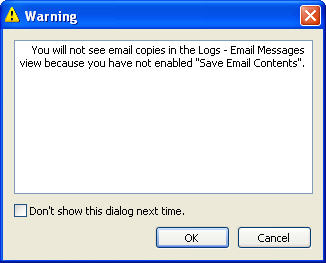
If we have not set Capsa to save email logs to a local disk, we’ll not be able to monitor email contents but we can monitor all email logs. So we must set the log settings to save email logs to a local path in order to monitor email contents. Also there will be a notice when start a new project.

Monitor Email Screeshot1

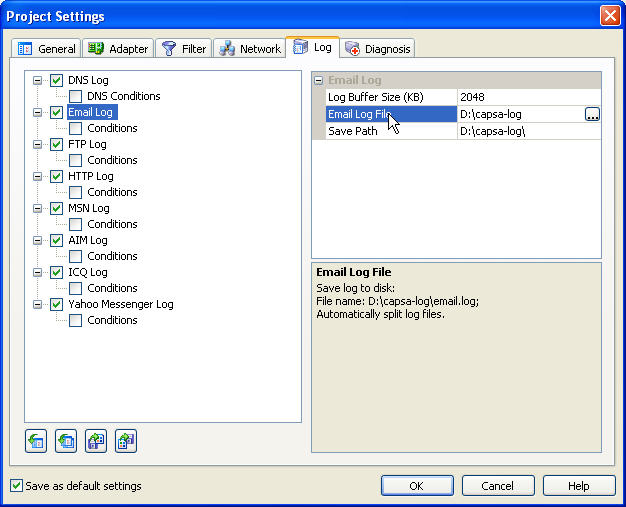
Setp3. Set Email Logs Settings

View full image to set the email logs setting correctly.

Monitor Email Screenshot2 - Click to view Large

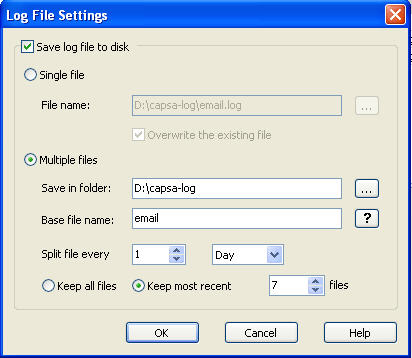
Advanced Email logs settings to split email logs and keep the most recent email logs to save disk space.

Monitor Email Screeshot3

Step 4. Start Capturing and Monitoring Emails in “Logs” Tab

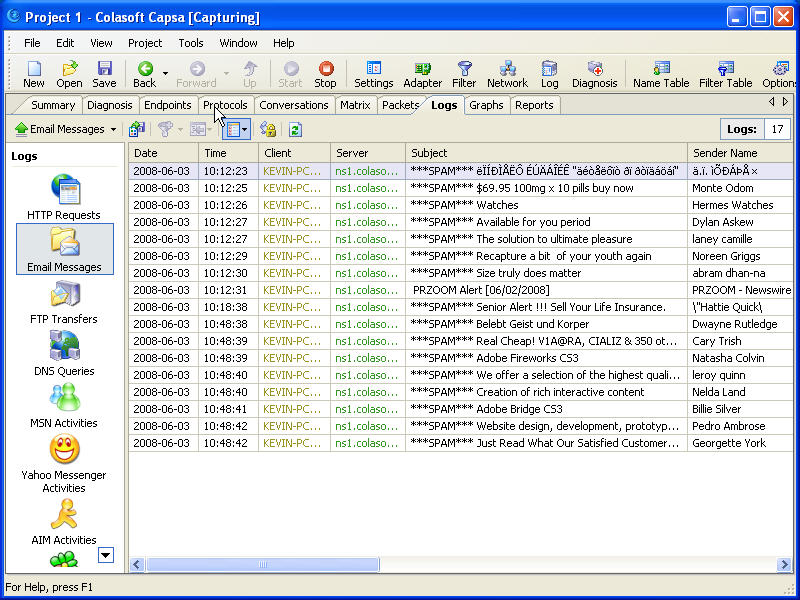
After email log settings is finished, we can do a test to see if we can get some email monitoring logs. Let’s launch Outlook and start sending and receiving emails. We can see that we’ve received many spam email in my email box. We can see a lot of information in the logs Tab, such as date and time, client name, email subject, sender and receiver name, size, and more.

Monitor Emails Screeshot - Click to View Large

Step 5. Monitor Email Contents

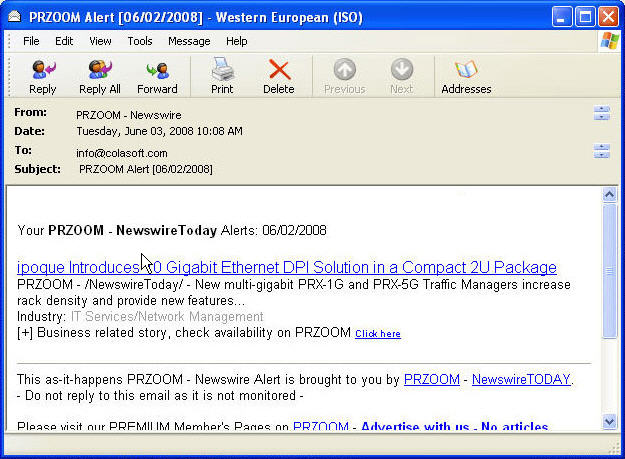
In order to view the original content of an email, the process is quite simple, just double-click on the logs, then Capsa will call an email software to display the email content, basically Outlook.

Monitor Email Screeshot5 - Click to View Large

Now this is the entire process how we can monitor emails with Colasoft Capsa, we hope you enjoy this article.

Next Step

>>Download a Free Trial


Wednesday, May 13, 2009

Top 5 Most Welcomed Packet Sniffers

Colasoft Network AnalyzerAccording to the latest statistic from famous download sites regarding to downloads of packet sniffer softwares, the following products are very honored to be listed as top 5 most welcome packet sniffers by network engineers, IT managers, and network administrators etc.

#1 Wireshark - A Free Open Source Network Sniffer for Top Network Engineers

Wireshark (known as Ethereal until a trademark dispute in Summer 2006) is a fantastic open source network protocol analyzer for Unix and Windows. It allows you to examine data from a live network or from a capture file on disk. You can interactively browse the capture data, delving down into just the level of packet detail you need. Wireshark has several powerful features, including a rich display filter language and the ability to view the reconstructed stream of a TCP session. It also supports hundreds of protocols and media types. A tcpdump-like console version named tethereal is included. One word of caution is that Ethereal has suffered from dozens of remotely exploitable security holes, so stay up-to-date and be wary of running it on untrusted or hostile networks (such as security conferences).


#2 Colasoft Packet Sniffer - All-In-One & Easy-To-Use Network Analyzer and Packet Sniffers Available For Most Network Administrators.

Colasoft Packet Sniffer - Capsa performs real-time packet capturing, 24/7 network monitoring, advanced protocol analyzing, in-depth packet decoding, and automatic expert diagnosing. It allows you to get a clear view of the complex network, conduct packet level analysis, and troubleshoot network problems.

Whether you're a network administrator who needs to identify, diagnose, and solve network problems, a company manager who wants to monitor user activities on the network and ensure that the corporation's communications assets are safe, or a consultant who has to quickly solve network problems for clients, Capsa is the tool you need.


#3 Tcpdump: The Classic Sniffer For Network Monitoring And Data Acquisition

Tcpdump is the IP sniffer we all used before Ethereal (Wireshark) came on the scene, and many of us continue to use it frequently. It may not have the bells and whistles (such as a pretty GUI or parsing logic for hundreds of application protocols) that Wireshark has, but it does the job well and with fewer security holes. It also requires fewer system resources. While it doesn't receive new features often, it is actively maintained to fix bugs and portability problems. It is great for tracking down network problems or monitoring activity. There is a separate Windows port named WinDump. TCPDump is the source of the Libpcap/WinPcap packet capture library, which is used by Nmap among many other tools.


#4 Etherdetect : Connection-Oriented Packet Sniffer And Protocol Analyzer

EtherDetect Packet Sniffer is an easy for use and award-winning packet sniffer and network protocol analyzer, which provides a connection-oriented view for analyzing packets more effectively. With the handy tool, all you need to do is to set up the filter, start capturing, and view connections, packets as well as data on the fly.


#5 Ettercap : In Case You Still Thought Switched Lans Provide Much Extra Security

Ettercap is a terminal-based network sniffer/interceptor/logger for ethernet LANs. It supports active and passive dissection of many protocols (even ciphered ones, like ssh and https). Data injection in an established connection and filtering on the fly is also possible, keeping the connection synchronized. Many sniffing modes were implemented to give you a powerful and complete sniffing suite. Plugins are supported. It has the ability to check whether you are in a switched LAN or not, and to use OS fingerprints (active or passive) to let you know the geometry of the LAN.


Monday, April 27, 2009

How to Monitor Internet Traffic with Packet Sniffer

Internet traffic is the flow of data around the Internet. It includes web traffic, which is the amount of that data that is related to the World Wide Web, along with the traffic from other major uses of the Internet, such as electronic mail and peer-to-peer networks.


In case we want to monitor internet traffic generated or is generating in LAN, here is a detailed process how we can do it with Colasoft Packet Sniffer – Capsa.


Again we must make sure the packet sniffer software is correctly implemented so we can capture all the traffic in LAN, if you don’t know how to do it, please make sure you read how to implement a packet sniffer.


First let’s launch a new project with Colasoft Packet Sniffer, then do some online activities, such as chatting, browsing a website, sending and receiving emails, downloading some files. All these activities will generate different kinds of internet traffic. We may keep the project running to continuously monitor internet traffic or stop the project to do some analysis.


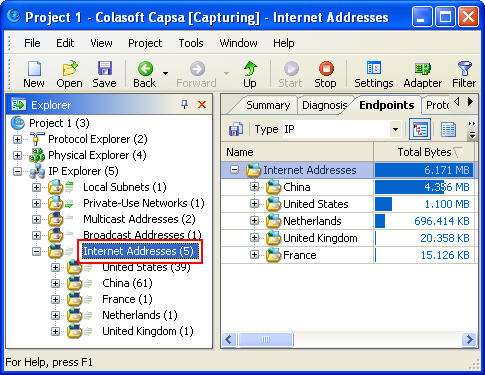
To monitor internet traffic, we’d better first select the “Internet Addresses” in the “Explorer” on the left window:


Monitor Internet Traffic Screenshot1


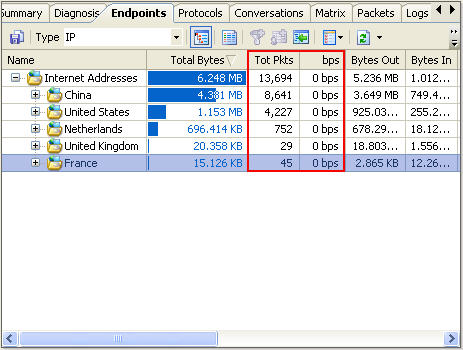
We can see that all the internet addresses are listed by countries, to monitor internet traffic of a specific country, we just need click on it; If we want to monitor internet traffic of a specific IP address within one country, we need to expand the country node and select the IP address in it.


Also we can monitor internet traffic aggregated or internet traffic in real-time


Monitor Internet Traffic Screenshot2


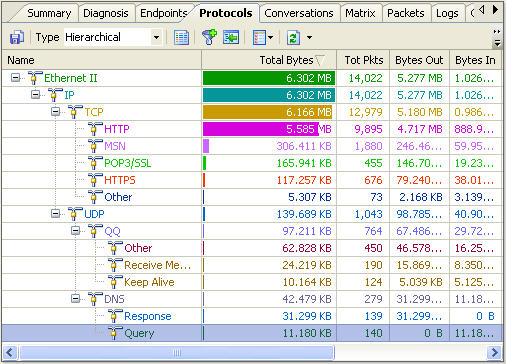
To view what online activities have generated or are generating internet traffic, we need to use the “Protocols” Tab.


Monitor Internet Traffic Screenshot1


We can see there are protocols which separately stand for different internet activities:


HTTP – Website browsing

MSN – online chatting with Live Messenger

POP3 – Email

HTTPS - Website browsing via a secure link

QQ- online chatting with QQ

DNS – Domain Name System


About Capsa


Colasoft Capsa is a network analyzer (packet sniffer or protocol analyzer) designed for network monitoring and troubleshooting. It performs packet capturing, network monitoring, protocol analyzing, packet decoding, and automatic diagnosing. By giving users insights into all of network's operations, Capsa makes it easy to isolate and solve network problems, identify network bottleneck and bandwidth use, and detect network vulnerabilities. Learn more about Capsa, please visit http://www.colasoft.com/capsa/


Thursday, April 23, 2009

How to Monitor http Traffic with Packet Sniffer

Hypertext Transfer Protocol (HTTP) is an application-level protocol for distributed, collaborative, hypermedia information systems. Its use for retrieving inter-linked resources led to the establishment of the World Wide Web.


In order to monitor http traffic, we will need a packet sniffer (or a protocol analyzer) software. Here is a detail process how we can monitor http traffic in LAN with Colasoft Packet Sniffer – Capsa.


Again let’s launch Colasoft Packet Sniffer and start a new project. Don’t forget one thing, we have to deploy the packet sniffer to the mirror port of the core switch in order to monitor all http traffic in LAN, if not, we can only monitor http traffic of our own computer.


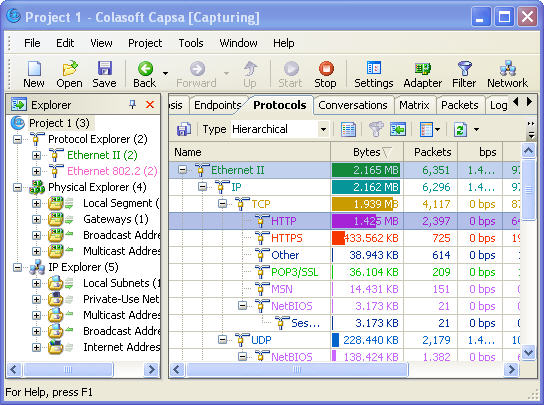
Then let’s start browsing a website, for example, www.colasoft.com, to generate some http traffic. Now let’s get back to the packet sniffer and see if there is http traffic. OK, we can see the packet sniffer has already captured some http traffic in the “Protocols” Tab


Monitor http Traffic Screenshot 1


We can see both the aggregated http traffic since start capturing and the real-time http traffic in this tab.


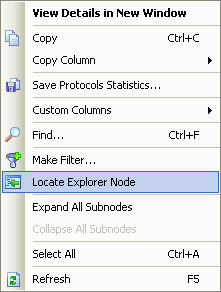
If we want to do a deeper analysis on http traffic, we will need to use the “Locate” function to locate http protocol in the Explorer to let the packet sniffer display only the data that is http protocol. Right click on the protocol and select “Locate Explorer Node” in the pop-up menu.


Locate Explorer Node


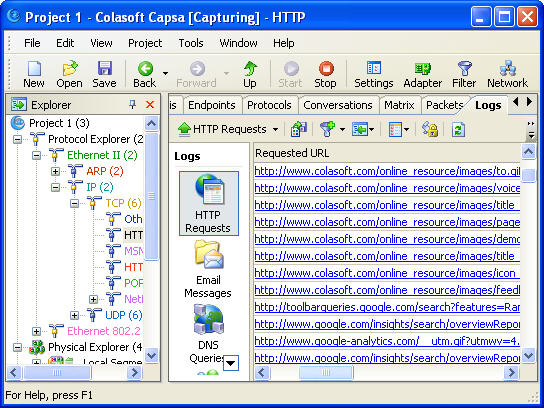
If we want to know who are using http protocol and what they are actually browsing, we are going to use two tabs, the “Endpoints” Tab and “Logs” Tab.


Let’s see who are using http protocol:


Who is Using http Protocol


And what they are actually browsing:


Monitor http Traffic Screenshot 4


Tuesday, April 14, 2009

How to Sniff All Images of a Webpage

In case we want to sniff all images of a webpage, here is a detailed process how we can do it with Colasoft Packet Sniffer’s "Logs" feature. I will take the CNN.com home page as an example.

Step 1. Open Log Settings

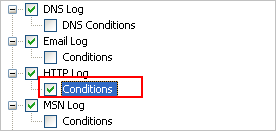
Log settings allows us to set up some conditions or exceptions whether or not record some logs in the Logs tab. If we want to display just images in the Logs tab, we must enable the HTTP Log conditions.

How to Sniff Images Screenshot 1

Step 2. Enable Http Log Conditions

We must tick before Conditions to enable it

How to Sniff Images Screenshot 2

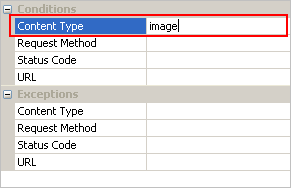
Step 3. Input "Image" into Content Type

On the right hand, lets’ input the content type in order to filter contents

How to Sniffer Images Screenshot 3

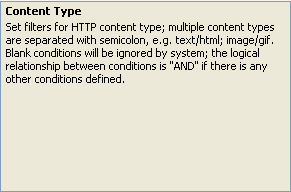
Here is an explanation of Content Type

How to Sniff Images Screeshot 4

Step 4. "OK" to Activate the Setting

Now we’ve done with the Log Settings, let’s see whether we can sniff all images of CNN.com index page. First of all, let’s start capturing with Colasoft Packet Sniffer, then let’s input the URL into the address bar and start browsing.

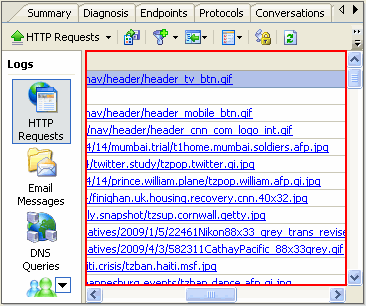
Results start showing in the Logs Tab – Http Request Option, we can see all results are in image formats. We have successfully sniffed all the images on this webpage.

How to Sniff Images Screeshot 5

To view the image, we can click on the record, and it will be shown in a browser.

How to Sniff Images Screenshot 6


Monday, April 13, 2009

Colasoft Packet Sniffer Capsa 6.9 Review

Colasoft Packet Sniffer ScreenshotOverview
Not so hard for a freshman.
Auto diagnosis.
Real time capture.
If it's cheaper, I will definitely buy it!
After using Colasoft Packet Sniffer, I found 3 features of this product:

1.supports the real-time capturing and monitoring
2.excellent capability of protocol analyzing (approximately 300 types) and packet decoding
3.Well, the most exciting part is the automatic expert diagnosing! That really saves so much money and time for me, and I do not worry about the solution of failure again!

Cost and performance are in desired level .

What It Is and What It Can Do
Colasoft Packet Sniffer is an expert packet sniffer and protocol analyzer designed for packet decoding and network diagnosis; it monitors the network traffic transmitted over a local host and a local network, with the ability of real time packet capture and accurate data analysis. Colasoft Packet Sniffer makes your network operations completely transparent before you, letting you isolate and troubleshoot network problems quickly and efficiently. The flexible and intuitive user interface lets either IT professionals or novice users skilfully handle it in a few moments.

Easily understand how to use this packet sniffer with samples provided with the Tool. Sample packets helps me a lot for my first time deployment by avoiding contacting the Technical Support during my initial days of using this Tool.

For a Small Business Enterprise, This tool's network diagnosis helps me to detect slow network and upgraded speed for better utilization.

I prefer this for a Medium Business Enterprise as troubleshooting network issues is simply superb.

For Medium and a Large Business Enterprises, Security is an issue.This packet sniffer enhances Network Security by monitoring the network with Logs. As every packet is recorded and analyzed, loopholes can easily detect.

For every organization, security is a major concern. By using this tool Monitoring of Email Contents and Monitoring IMs, Chats is easy. Every information in Messegers, chats, HTTP Requests is logged .

Can easily find where the problem from the Packet Analysis without letting the user to report about his huge traffic.

For Internet Service Provider, this is very very useful tool. ISPs have problems of Server down issues due to huge traffics. By diagnosing with this tool, Server down issues can be reduced.
Prevent hibernation while capturing and view both IP Addresses and Hostnames. This is a good feature in upgraded version.

Colasoft Packet Sniffer Supports Windows Vista-64 bit Edition. Able to identify and Analyze 300+ Network Protocols.

By going through the site www.colasoft.com, I came to know that Colasoft Packet Sniffer Professional Edition available and used it for Analyses. It really good to use and operate. Everything is logged and my network usage is monitored.

Videos in the website help me to understand the ARP Attacks, Monitoring Network traffic. So I can protect my network now by identifying the deceived hosts and by identifying who is consuming maximum bandwidth in a Local Segment.

I can monitor the traffic either by protocol, IP or MAC Address. So much flexibility in using this packet sniffer.

Internet Service Providers can use this tool for quick issue troubleshooting. Easy to identify problems and minimizes the time to service the customer.

The reports are displayed with Graphs and Tables .Viewing the connection in a matrix is wonderful and it is something special in Colasoft Packet Sniffer. This pictorial representation is really good to sort out the issue by easily detecting.

Colasoft Packet Sniffer has the tools that would not find in other protocol analyzers, including ping and scan IPs and MACS across the LAN.

Summary
Colasoft Packet Sniffer is an easy-to-use and all-in-one tool for IT Network Administrator, IT Consultant and for a Security Manager in IT Company.
Wednesday, April 8, 2009

Packet Sniffer, Basic Tool for Network Administrators

packet sniffer screenshot

Packet sniffers are a valuable tool for both network administrators and hackers. There are many packet sniffers on the market and one of the most sophisticated is the packet sniffer from Colasoft

Packet sniffers are one of the best tools a network administrator has at his or her disposal to analyze network traffic and to troubleshoot problems. On the other hand, when a Packet sniffer is in the wrong hands – i.e. hackers use it – this can cause quite a lot of damage to a company or an individual, especially if the victim hasn't taken the required protective measures. You see, as with many things in life, packet sniffers can be a great tool to maintain a network, yet they can be very destructive, if misused.

Packet sniffers are very common, choose a best packet sniffer for you. There are many packet sniffers on the market and they range from free, to cheap, to expensive, from very simple, to advanced, to packed with features. Each type of packet sniffers has its purposes and if you need a simple tool for quick results on a small network, you don't have to buy the most expensive packet sniffers, no matter that they have tons of features. But in reality, if you need a packet sniffer for professional use, low-end sniffers are not the answer and you need something more sophisticated, for example Colasoft Network Analyzer. Colasoft Network Analyzer is built around packet sniffing but includes many other useful features as well.

As any other packet sniffer, the packet sniffer from Colasoft, intercepts and logs traffic, transmitted within a network (or a network segment). A packet sniffer can be really invisible because it monitors the network (almost) unobtrusively. Since a packet sniffer just sniffs the packets without modifying them, it doesn't cause disturbances to alert the administrator that something is going on. Unless the administrator doesn't run an anti-sniffer, the traffic can be eavesdropped and nobody will know about it.

Of course, a good network administrator knows how to detect a packet sniffer, so if you plan to get Colasoft packet sniffer and use it in a malicious way, don't expect that this will go unnoticed. The packet sniffer in the Colasoft Network Analyzer is not stealth but since anyway Colasoft Network Analyzer is intended for network troubleshooting, not network hacking, there is no reason to worry that the packet sniffer is not hidden. When a network administrator uses a packet sniffer in order to legitimately monitor network traffic, he or she doesn't need cover.

One of the most important features of a packet sniffer is the protocols it can sniff. In this aspect Colasoft Network Analyzer is an unbeaten packet sniffer because it can monitor over 300 protocols. Colasoft knows that when the packets of major protocols are not captured, this gives a wrong impression about the traffic in the network and that is why Colasoft Network Analyzer supports so many protocols. And no, the protocols Colasoft Network Analyzer can sniff are not exotic ones – they are protocols used frequently in networks.

Additionally, new and new protocols are added to the packet sniffer from Colasoft, so even if your network uses some really rare protocols, which are currently not supported by Colasoft Network Analyzer, they could be added in the future. Well, if you expect that the packet sniffer from Colasoft will sniff encrypted traffic, this will not happen because no packet sniffer can do it!

Tuesday, December 2, 2008

Network Troubleshooting Made Easy, A Colasoft Software Solution

The Challenge
As the business is becoming more and more networked, it’s always necessary for network administrators to troubleshoot network issues in shortest time possible if the network is not functioning properly. Network downtime or network malfunction may cause headaching inconvenience or even millions of business losses if not settled up in time. Without a handy tool, network troubleshooting can be time-consuming and frustrating.

Old Ways – Time-consuming and Frustrating
There are a lot of articles providing guidance on how to troubleshoot network issues in general ways. For simple networking issues, these tutorials work fine. However, for a company-level network, issues are often complicated and mixed, and these issues require deeper analysis and stronger diagnosis abilities. Obviously, old ways are no longer suitable for today’s in-time network troubleshooting demands.

Troubleshooting Network Issues in Seconds
To troubleshoot your network in time, even in seconds is now possible with Capsa’s diagnosis feature. Network issues are automatically detected and clearly identified, with possible causes and solutions provided.

Automatic Diagnosis
Based on Colasoft’s packet analysis engine, Capsa is able to automatically detect network issues in different OSI layers, such as application layer, transport layer, and network layer. All these issues are marked with different severity levels, indicating which are critical issues that need to be addressed immediately, which are just informative messages.


(Figure 1 Diagnosis Events List)

Quick Locate Suspicious Host
Once a critical network issue is detected and requires immediate handling, we can select the item from the list, then detailed information will be provided under, including source, destination, port and so on. We can easily locate the suspicious host in this field, for example, the attacking host or the host which is spamming our network. Moreover, after locating the suspicious host, we can conduct deeper analysis, such as protocol analyzing or packet decoding.


(Figure 2 Diagnosis Details)
Possible Causes & Solutions
When selecting a network issue from the list, possible causes and solutions are also provided for users to understand the issue and solve it as soon as possible.


(Figure 3 Possible Causes & Solutions)
Customizable
Depending on network sizes and network’s characteristics, we can customize the threshold that triggers one diagnosis event and the severity of the network issue.


(Figure 4 Customize Threshold)

Conclusion

It is always good to maintain the network running smoothly and properly without any problems. However, if a network issue arises, we must make sure it is quickly detected and solved before it affects the entire infrastructure and brings loss to our business. For the complexity of the network and variety of network applications, network troubleshooting is becoming more challenging and demanding. To have a powerful tool like Capsa in hand is must in everyday’s network management.

About Capsa
Capsa is packet sniffer software designed for network monitoring and troubleshooting purposes. It performs real-time packet capturing, 24/7 network monitoring, advanced protocol analyzing, in-depth packet decoding, and automatic expert diagnosing. By giving users insights into all of the network's operations, Capsa makes it easy to isolate and solve network problems, identify network bottleneck and bandwidth use, and detect network vulnerabilities, external attacks and insecure applications.

About Colasoft
Ever since 2001, Colasoft has been dedicated in providing all-in-one and easy-to-use network analysis software for customers to monitor, analyze, and troubleshoot their network. Up to now, more than 4000 customers in over 70 countries trust the flagship product – Capsa as their network monitoring and troubleshooting solution. The company also offers four free network utilities: Colasoft Packet Builder, Colasoft Packet Player, Colasoft MAC Scanner, and Colasoft Ping Tool. Learn more today at http://www.colasoft.com/


Tuesday, October 28, 2008

Colasoft Packet Sniffer Capsa 6.9 Released

colasoft logo(colasoft.com) – Oct 21, 2008 - Colasoft, a dedicator in network analysis field, recently released version 6.9 of its flagship product – Capsa, a packet sniffer software designed for network monitoring and troubleshooting purpose. Two new protocols, Cisco Inter-Switch Link (ISL) and Fibre Channel over Ethernet (FCoE) now can be recognized and decoded. This latest version also improved user’s experience based on user’s feedbacks.

Capsa is packet sniffer software which can perform real-time packet capturing, 24/7 network monitoring, advanced protocol analyzing, in-depth packet decoding, and automatic expert diagnosing. By giving users insights into all of the network's operations, Capsa makes it easy to isolate and solve network problems, identify network bottleneck and bandwidth use, and detect network vulnerabilities, external attacks and insecure applications.

"We'll always take into consideration good suggestions from our customers", Said Roy Luo, the CEO of Colasoft, "and include them in future releases to ensure highest satisfaction."

What’s New in Capsa 6.9

Support ISL Protocol Decoding: Cisco Inter-Switch Link (ISL) is a Cisco Systems proprietary protocol that maintains VLAN information as traffic flows between switches and routers, or switches and switches. It is a protocol to encapsulate traffic from different vlans, and tag them for latter specification. Now all trunk traffic between switch -- switch or router -- switch can be decoded and the context inside of the trunk link can be analyzed.

Support FCoE Protocol Decoding: Fibre Channel over Ethernet (FCoE) is a proposed mapping of Fibre Channel frames over selected full duplex IEEE 802.3 networks. This allows Fibre Channel to leverage 10 Gigabit Ethernet networks while preserving the Fibre Channel protocol. The specification is supported by a large number of network and storage vendors, including Cisco, EMC, HP, IBM, Intel, and Sun Microsystems.

View IP address and Hostname in One Tab: Capsa will automatically resolve hostname and display it in its interface. In previous versions users may view only the hostname or the IP address at a time, they will need to switch manually if they want to view another value. In 6.9 users can directly view both the IP address and the hostname at the same time, which provides correlation between the two values

"It's the easiest product to use. The support is excellent and the features added in subsequent releases are always well thought-out and beneficial to our company." Eric Gomez, CSO, InfoSight, Inc.

Whether for a network administrator who needs to identify, diagnose, and solve network problems quickly, an IT professional who wants to monitor user activities on the network, a security manager who needs to ensure that the corporation's communications assets are safe, or a consultant who has to quickly solve network problems for clients, Capsa has the functions that satisfy the diversified needs perfectly.

Capsa 6.9 runs under Windows 2000/XP/2003/Vista. A trial version is available at the company's web site: http://www.colasoft.com/

About Colasoft

Ever since 2001, Colasoft has been dedicated in providing all-in-one and easy-to-use network analysis software for customers to monitor, analyze, and troubleshoot their network. Up to now, more than 4000 customers in over 70 countries trust the flagship product – Capsa as their network monitoring and troubleshooting solution. The company also offers four free network utilities: Colasoft Packet Builder, Colasoft Packet Player, Colasoft MAC Scanner, and Colasoft Ping Tool. Learn more today at http://www.colasoft.com/


Wednesday, October 15, 2008

How to Monitor Network Traffic with Packet Sniffer

colasoft logoThere are quite a lot of software (both free and commercial) out there that perform network traffic monitoring tasks. But this article is to discuss how we can monitor network traffic with packet sniffer software. Among these packet sniffers, Colasoft Packet Sniffer is highly recommended as it is easy to use and thorough in data analysis. You can click here to download a trial version of Colasoft Packet Sniffer.

Get a Real-ime network traffic Trend Chart

If we want to get a trend chart of the network traffic, then we need to use the "Graphs" tab. "Graphs" view allows us view network statistics dynamically in different chart types, such as ling chart, bar chart, and pie chart. By selecting "Utilization" we get a real-time network traffic trend chart.

monitor network traffic with colasoft packet sniffer graph1

Learn How Much network traffic Has Been Generated by What Network Protocol


"Protocols" view will list all protocols applied in network transmission. In "Protocols" view we can monitor network traffic by each protocol. By analyzing network traffic by protocol, we can understand what applications are using the network bandwidth, for example "http" protocol stands for website browsing, "pop3" stands for email, etc.

monitor network traffic with colasoft packet sniffer graph2

Learn Which Host Has Generated or Is Generating How Much network traffic

In "Endpoints" view, we can monitor network traffic information of each node, both local and remote. In this tab we can monitor the aggregated network traffic and the real-time network traffic generated by each host (listed as IP addressess and MAC addresses). With its easy sorting feature we can easily find out which host is generating or has generated the largest network traffic.

monitor network traffic with colasoft packet sniffer graph3

Monitor network traffic Generated by Each Network Conversation

In "Conversations" tab we can monitor network traffic by each conversation and the figure out which conversation has generated the largest network traffic.

monitor network traffic with colasoft packet sniffer graph4

Inbound network traffic, Outbound network traffic, Broadcast network traffic and So on


In "Summary" we can get a quick view of the total network traffic, real-time network traffic, broadcast network traffic, multicast network traffic and so on. When we switch among the node from the explorer, corresponding network traffic information will be provided.

monitor network traffic with colasoft packet sniffer graph5

Colasoft Packet Sniffer - Capsa

Capsa is packet sniffer software designed for network monitoring and troubleshooting purpose. It performs real-time packet capturing, 24/7 network monitoring, advanced protocol analyzing, in-depth packet decoding, and automatic expert diagnosing. By giving users insights into all of the network's operations, Capsa makes it easy to isolate and solve network problems, identify network bottleneck and bandwidth use, and detect network vulnerabilities, external attacks and insecure applications.

Capsa runs under Windows 2000/XP/2003/Vista. A trial version is available at the company's web site: http://www.colasoft.com/

Monday, October 13, 2008

How to Deploy a Packet Sniffer

colasoft logoBefore we can analyze and monitor a network with a packet sniffer, we must make sure the packet sniffer is correctly deployed at the right place, so that we can capture all the traffic running in and out. The installation of a packet sniffer is easy, it is always a good idea to install a packet sniffer on a laptop, so that the laptop can be shifted around to troubleshoot different network segments. This article will discuss how to deploy a packet sniffer based on the different network device that is used.

How to Deploy a Packet Sniffer in a Switched Network

Switch is a network device working on the Data Link Layer of OSI. Switch can learn the physical addresses and save these addresses in its ARP table. When a packet is sent to switch, switch will check the packet’s destination address from its ARP table and then send the packet to the corresponding port.

Condition 1: Manageable Switch

Generally all three-layer switches and partial two-layer switches are manageable; the traffic going through other ports of the switch can be captured from the debugging port (mirror port/span port) on the core chip. To analyze the traffic going through all ports, we should deploy a packet sniffer at this debugging port (mirror port/span port). In a manageable switch network environment, we should deploy a packet sniffer like this:

packet
Condition 2: Unmanageable Switch

If our switch has no management function, we can connect a tap with the line to be monitored. Taps can be flexibly placed on any line in network. When requiring high network performance, we can add a tap to our network. In an unmanageable switch network environment, we should deploy a packet sniffer like this:


How to Deploy a Packet Sniffer in a Hubbed Network

A hubbed network is also known as shared network which is connected with a hub. In a hubbed environment, packet sniffer can be installed on any host in LAN. The entire network data transmitted through the Hub will be captured, including the communication between any two hosts in LAN, because when a packet arrives at one port, it is copied to the other ports so that all segments of the LAN can see all packets. In a hubbed network, we should deploy a packet sniffer as shown below:

packet sniffer deployment1

Thursday, October 9, 2008

Top Reasons Why Academic Users Need Packet Sniffer Software

Academic users need packet sniffer software for various reasons in their daily works, such as network performance monitoring, network behaviors supervising ,conceptual items demonstrating and so on. Two packet sniffers are highly recommended for such users.

Why Academic Users Need Packet Sniffer Software

For an academic network administrator who needs to make sure the network is running smoothly and reliably, he will need packet sniffer software for:
  • Monitoring network performance around the clock,
  • Supervising various kinds of network behaviors,
  • Protecting network from suspicious intentions and attacks,
  • Discovering network loopholes and network bottlenecks,
  • Identifying and troubleshoot network problems in time,

For an academic teaching staff who needs to explain and demonstrate conceptual items to his students, he will need packet sniffer software for:
  • Demonstrating how a service (such as DNS, DHCP) works for your network,
  • Demonstrate the detail information within a packet of some sort of specific protocol,
  • Demonstrate the network behaviors of an application,

For an academic researcher and developer, he will need packet sniffer software for:
  • Network protocols research purpose
  • Debug network relied applications

For an academic student, he will need packet sniffer software for his studying and researching purposes.

Suggested Packet Sniffer Software

Wireshark

Wireshark is a free network packet sniffer developed by an international team of networking experts. Its key features include:
  • Deep inspection of hundreds of protocols, with more being added all the time
  • Live capture and offline analysis
  • Standard three-pane packet browser
  • Multi-platform: Runs on Windows, Linux, OS X, Solaris, FreeBSD, NetBSD, and many others
  • Captured network data can be browsed via a GUI, or via the TTY-mode TShark utility
  • The most powerful display filters in the industry
  • Rich VoIP analysis

Colasoft Packet Sniffer

If you are looking for a cost-effective and easy-to-use packet sniffer, then you should take a look at Capsa, a packet sniffer produced by Colasoft Co., Ltd. Its key features include:

  • Monitor traffic and bandwidth details in graphs and numbers.
  • Automatically diagnoses network and suggests solutions.
  • Able to identify and analyze 300+ network protocols.
  • Provides packet summary and decoding information.
  • Monitors site visits, email contents, online chats, and more.
  • Lists all hosts in network with details (traffic, IP, MAC, etc.).
  • Visualizes the entire network in an ellipse, showing connections and traffic.
  • Monitor all conversations and reconstruct packet stream.
  • Free built-in tools to create and replay packets; scan and ping IPs.
  • Quick generates reports of most concerned items.


Capsa runs under Windows 2000/XP/2003/Vista. You can click here to download a trial version of Capsa.
Colasoft Capsa is an easy-to-use packet sniffer for network monitoring and troubleshooting. It performs real-time packet capturing, 24/7 network monitoring, advanced protocol analyzing, in-depth packet decoding, and automatic expert diagnosing. By giving you insights into all of your network's operations, Capsa makes it easy to isolate and solve network problems, identify network bottleneck and bandwidth use, and detect network vulnerabilities.
 
Free counter and web stats